How EZ Agent Credits Work: You Pay for Results, Not Attempts
Dubzeey Wu | —— Read time: 10 min
The short answer
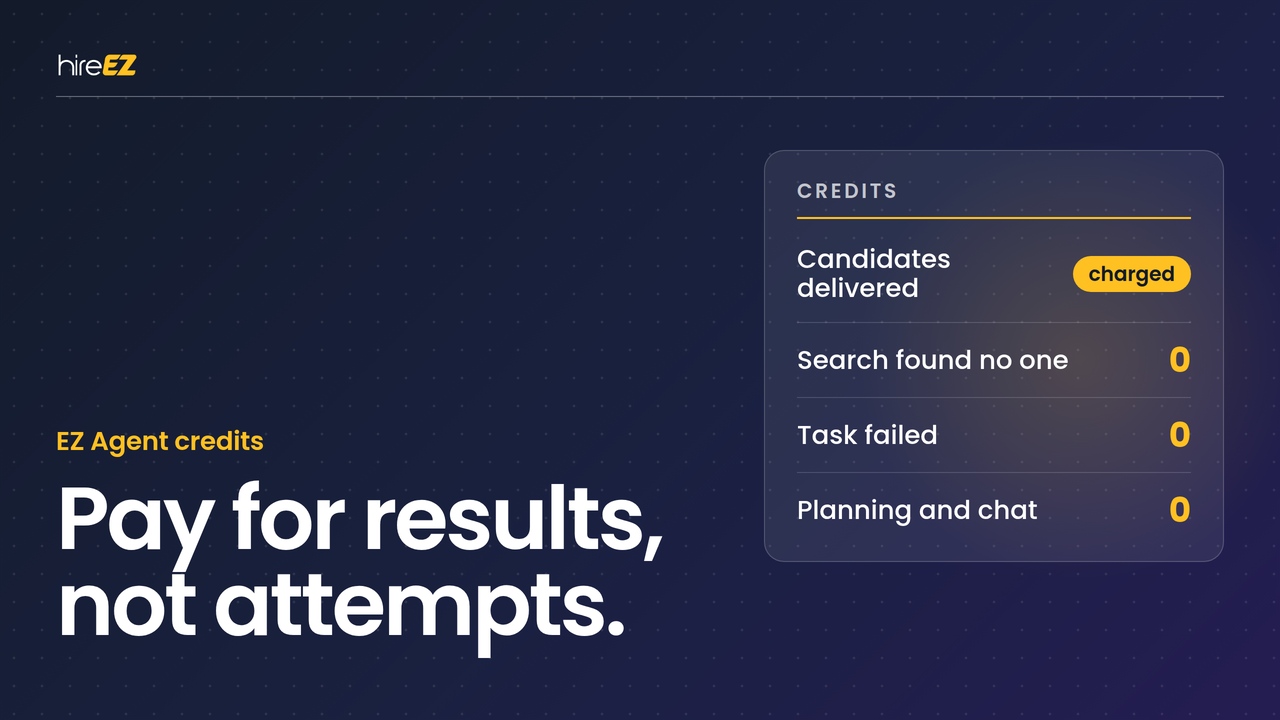
EZ Agent uses credits only when it delivers a result: a candidate found, a message sent, a minute of a screening call, a finished report. Asking, planning, reviewing and anything that fails cost nothing.
Your workspace shares one balance, and admins keep it predictable with five controls: seats, spending limits, approvals, automation rules and low-balance alerts. New to EZ Agent? Start with What Is hireEZ?
Results, not attempts
An AI agent that works on its own raises a fair question for any budget owner: what stops it from running up a bill? EZ Agent's answer is built into how it charges. Your seat is what lets you direct the agent. Credits pay only for what it delivers.
What never uses credits:
Chatting with the agent, asking questions, planning and giving feedback.
Searches that find nobody, and tasks that fail.
Looking at candidates a search already delivered.
Reviewing, approving, editing or declining anything the agent drafted.
Checking your balance and usage.
Repeating work you already paid for, such as polishing a report or editing a page.
One unit, one charge. Every kind of work has one fixed unit: a candidate delivered, a message sent, a minute of a call, a report. The billing system works out the quantity from the delivered result itself, so the agent can't decide to charge more for the same unit.
Refunds are automatic. If an outreach email is accepted and then bounces, its credits return to your balance, along with the credits for a contact revealed for that outreach. Each refund shows as its own line in your usage.
One shared balance. Your plan includes a set number of credits for the contract term (see plans and pricing), and every member draws from the same pool. There's no separate quota per feature, so credits go wherever they help most. Because hireEZ is one system of action on top of your ATS, that single balance covers sourcing, outreach, screening, scheduling and insights: work that would otherwise sit in four to six separately priced point tools. That flexibility is also why controls matter: one busy week of outreach can draw down the balance for everyone.
Where credits go
Different kinds of work use credits at very different rates. This table ranks each one by how many credits a single unit uses relative to the others. Exact rates are set by your plan; for planning, the order is what matters. Where My usage shows a different name for the same work, it's in brackets.
Kind of work
One unit is
Relative credit use
Deep search (Sourcing searches)
One candidate delivered
Lower
Rediscovery
One ATS profile kept findable, per year
Lower
AI review or rescore
One candidate scored against the role
Lower
Message generation
One message, any channel
Lower per message, but it multiplies
CRM nurturing
One vetted candidate kept engageable, per year
Moderate
Applicant Match
One application
Moderate
Voice AI screening
One minute of conversation
Moderate, and it scales with length
Contact reveal (Contact details revealed)
One contact revealed
Higher
Interview prep, note taking, scorecard
One interview, per action
Higher
Scheduling automation
One scheduling transaction
Higher
Insights report (Market insight reports)
One report
Highest
Page generation
One careers, job or campaign page
Highest
Some repeats are built in to cost nothing: re-running a search within 24 hours never re-bills, each ATS profile counts once per year however often the agent finds it, and regenerating a scorecard, polishing a report or editing a page is free.
What makes usage climb
When a balance drops faster than expected, it's usually one of these:
Broad searches run often. Re-running a wide search to "see what's new" delivers mostly people you already passed on, and charges for them again.
Long sequences to large lists. Each person gets one message per step, so a three-step sequence to 100 candidates is 300 messages.
Team-wide automation rules. A rule that reviews or screens every applicant on every job spends without anyone asking each time.
Revealing contacts before deciding. A reveal is one of the heavier charges. Reveal the people you intend to contact.
Long voice screens. Calls are charged by the minute, so screening length is a direct lever.
Exploratory reports and pages. Each new one is among the largest single charges. Talk the question through with the agent first; the conversation is free.
Large maintained talent pools. Upkeep accrues per candidate per term, so pool size sets a baseline.
Five controls admins have
1. Seats decide who can spend
Operator: runs hiring on the agent and spends credits.
Collaborator: a hiring manager or interviewer who talks to the agent, sees the pipeline and approves or redirects work, but can't start work that spends.
Admin: sits on top of either seat, and is the only role that sets spending limits, sees burn by member and job, and exports the credit ledger.
Give Operator seats to the people who run searches and outreach, and Collaborator seats to everyone who only reviews and approves. That alone removes most unplanned spend.
2. Spending limits at four levels
Level
Set by
At the limit
Member
A workspace Admin
The task that crossed it finishes and is charged; that member's next request is declined. Nobody else is affected.
Group
A workspace Admin
Each member is treated as if the group limit were their own, unless they have a member override.
Workspace
The Org admin allocates; the workspace Admin can cap within it
A hard stop: new work stops for everyone. In-flight work finishes and isn't charged past the limit.
Organization (multi-workspace customers)
The Org admin
Nothing can be allocated past what the organization holds.
A limit is a ceiling, not an allocation: it doesn't reserve credits for anyone, and everyone still draws from the same balance. Our recommendation is to start with group limits and per-member overrides, which contain individual spend without ever cutting off the whole team. Limits run per contract term or per calendar month. Set them by asking the agent, or in Account → Team usage; every change is recorded with who made it and when.
3. Approvals show the cost before you say yes
Anything sent to a candidate, or written to your ATS, waits for approval or runs under a standing permission you granted and can revoke at any time. Admins set the approval level for each kind of action under Delegation. For outreach, the approval card shows the number of recipients and steps before you approve, and that product is the charge.
4. Automation rules, scoped on purpose
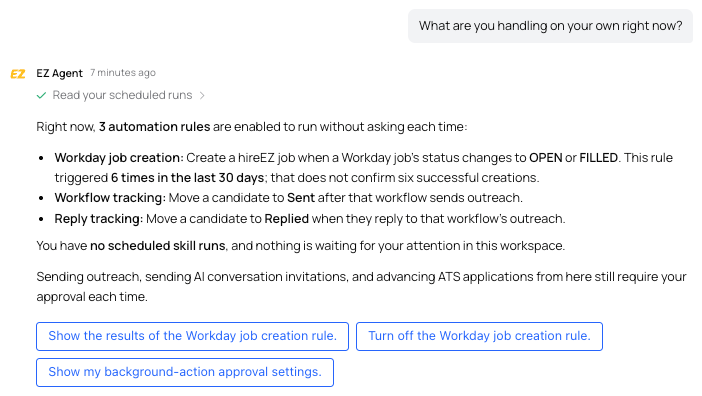
Rules can review, screen or schedule without anyone asking each time, which makes them the one place spend can compound unattended. Start a rule on one job and watch its usage before widening it; team-wide rules need an Admin. To check what's running, ask the agent: "What are you handling on your own right now?"
5. Low-balance alerts
Your workspace is alerted when 20% of the term's credits remain (about 80% used) and again at 10% (about 90% used). Members with a personal limit get the same alerts for their own allowance, and Org admins are told when a workspace's allocation is nearly used. Treat the first alert as the moment to review usage and decide on a top-up, not as the last warning.
See exactly where credits went
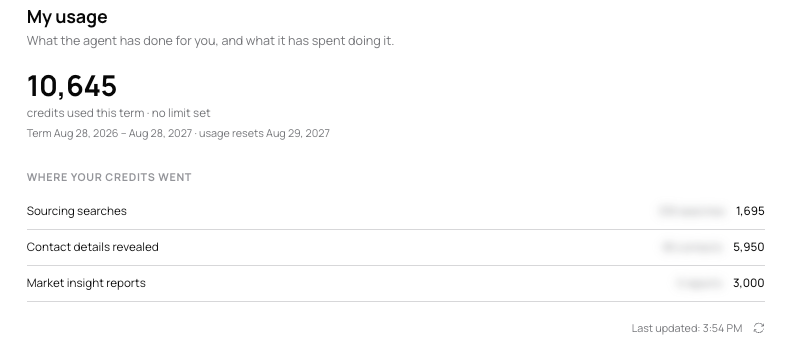
Every member: Account → My usage shows what you've used, by kind of work.
Admins: Account → Team usage shows the workspace balance, the credits included in the term and how much has been used, with burn by member, by job and by type of work. The credit ledger can be exported.
Org admins: the Organization view rolls up every workspace, with a ledger export across the whole organization. You can ask it questions such as "Which workspace used the most credits last month?"
On My usage, deep search appears as "Sourcing searches." The count beside it is the number of searches run, but the credits on that line are for the candidates those searches delivered.
How to read a usage line. Each line names the kind of work, the unit, the quantity and the credits used, plus who asked for it and which job it was for.
A zero-credit line is a delivery that cost nothing, and it says why: already charged, no result, a failed task, a candidate already delivered, a spending limit reached, or a recorder removed from a meeting.
A refund line is a bounce returning credits for a message or a reveal.
Added credits, resets and corrections appear as their own lines, so the balance is always the sum of what you can see.
Audit the mix, not just the total. If most of a month's credits went to reports or reveals, your guidance on when to use them isn't landing. If one job or one member dominates, check whether a rule or a wide sequence is behind it.
When credits run out, the agent stops starting new work for the workspace and says so. Tasks in progress finish, so the balance can briefly dip below zero, and work that doesn't use credits, such as conversation and review, carries on. Nothing already produced is lost. Enterprise customers can add credits through support or their Account Manager.
A rollout checklist for admins
Before rollout
Assign seats deliberately. Operator seats for the people who run searches and outreach; Collaborator seats for everyone who reviews and approves.
Define two or three spending tiers, such as light, standard and power. Map groups to how people work, such as sourcers and coordinators, rather than to the org chart, and set group limits first.
Set a limit when you invite someone, not after their first month.
Gate the heavy capabilities. Give voice screening, reports and landing pages to the groups whose work needs them, and roll them out in waves.
Set approval levels under Delegation. Grant standing permissions for sends only after you've seen a few batches.
At onboarding, tell your team
You're charged only when the agent delivers a result, never for asking, planning or reviewing.
Before approving a sequence, multiply recipients by steps.
Reveal contact details only for the people you're going to contact.
Talk a question through with the agent before asking for a new report.
Re-run a search when your criteria change, not to refresh the list.
Keep screening calls focused; they're charged by the minute.
Every month
Review limits. A member who keeps hitting theirs is worth a conversation before an automatic raise; a member at zero may not be activated yet.
Audit the mix in Team usage, and scope down any automation rule that spends more than planned.
Frequently asked questions
Does asking EZ Agent a question cost credits?
No. Conversation, planning and reviewing results are free. Only delivered results use credits.
If I run the same search twice, am I charged twice?
Each run charges only for the candidates it delivers, and re-running a search within 24 hours never re-bills. People you've already taken into a pipeline aren't delivered again.
Can I see which member or job is using the most credits?
Admins can, in Account → Team usage, where usage is broken down by member, job and type of work.
Does a member limit stop the whole team?
No. It applies to that member only. Only the workspace limit stops new work for everyone.
Why does my usage show lines with zero credits?
Those are deliveries that cost nothing, such as repeat work, a failed task, a search that found nobody, or a delivery after a spending limit was reached. They're shown so the record is complete.
Do automation rules use credits?
Yes, in exactly the same way as asking directly. The difference is that a rule keeps asking on its own, so scope it to one job first and review what it does.